 Open WebIDE
Scheduled tasks
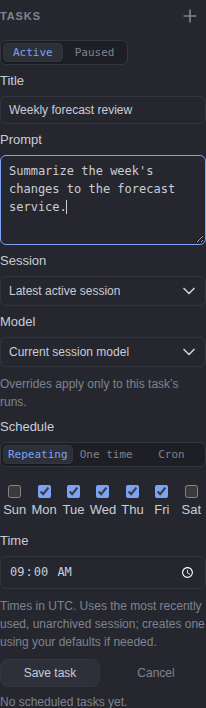
Open Sessions → Tasks to schedule a saved prompt for a session. Tasks
belong to the current project, or to your projectless chats when no project is
selected. The + button opens the editor.
Choose Repeating, select weekdays and a time, or choose One time and a date/time. The Cron tab accepts a standard five-field crontab expression: minute, hour, day of month, month, weekday. Lists, ranges and steps are supported. A schedule is a prompt, not a shell command.
Times are shown in the browser's timezone. One-time timestamps, next runs and run history are stored as UTC epoch seconds. Recurring cron expressions also retain the timezone in which they were created, so weekday and time choices keep their wall-clock meaning across daylight saving changes. Fixed-time occurrences in a spring-forward gap run at the first valid time after the gap; fixed-time occurrences in the repeated fall-back hour run once. Custom wildcard/interval patterns follow each matching real-time occurrence.
Choose an existing Session, New session each run, or Latest active session. Automatic targets are resolved when the task fires. Latest means the most recently used, unarchived session in the same project (or projectless scope); if none exists, it creates one. New sessions use your default model, system prompt and normal new-session approval rules, and remain in the Sessions list with their results. Saving an automatic task creates no empty session. Cancel dismisses the editor; if a save is already in progress, it continues in the background.
Model defaults to Current session model, resolved when each run starts. Choose a model from any enabled server to override it for this task’s runs. An override does not change the destination session’s saved server or model. If the selected server becomes unavailable or disabled, the run reports a failure.
Tasks use the chosen model’s profile and the destination session’s memory, tools and normal approval rules. Their prompt appears as a user message marked with the task name and ID. Open session takes you to that conversation. Expand a task to see its next run and last result, edit it, pause/resume it, or delete it. Waiting approvals show Approve and Deny; an active response also has Stop. Pausing or removing a task cancels undelivered prompts; it does not erase a delivered chat or stop an already-running response.
For temporary agent follow-up checks, use Monitors. They share the host dispatcher but stay out of this saved-task list.
Execution hosts
The bridge daemon supplies the clock and native execution primitives. Keep Spin and the bridge running; no browser tab needs to stay open. Remote and projectless tasks use the server bridge. Local tasks use the connected host whose filesystem was verified against the browser's selected folder. Saving a local task verifies that folder mapping again and saves the authorized host binding in user-scoped database settings.
A separate paired daemon needs the backend URL and the existing backend bridge
secret file, as well as its pairing token and workspace root. It polls only its
own host bindings. The server daemon (without a pairing token) also services
remote/projectless tasks. Host identity includes the machine and workspace root;
OPENWEBIDE_SCHEDULER_HOST can set a stable explicit identity. Use a distinct
identity for each machine/workspace. If a host or folder is unavailable, the UI
shows that clearly; host-native local execution requires that host to reconnect.
Browser folder permissions alone cannot authorize a daemon's filesystem access.
Delivery and recovery
The database stores task definitions, revisions, upcoming runs and history. Completed run details summarize the actual final response and tool outcomes using the assistance model, with a final-response excerpt if generation is unavailable. Failures, cancellation and approval blockers retain their execution details. Schedulers poll every five seconds and atomically claim due occurrences. Missed occurrences coalesce into one pending prompt after downtime. Each task has at most one pending/running occurrence, and each chat has a renewable run lease so scheduled prompts wait for normal responses. Queued scheduled prompts appear in the chat queue but are delivered by their host, not by the browser's queue runner.
A pre-injection claim can be retried after its lease expires. Queue consumption and the user message are committed together, so an injected prompt is never replayed automatically. A host crash after injection is recorded as interrupted; inspect the chat before rerunning it. Preflight failures are recorded with their reason without blocking the chat queue. Recurring tasks continue at their next scheduled time; edit/reschedule a one-time task to retry. Concurrent edits use revisions and reject stale updates. Removing a task retains messages already delivered to chat.
Agent tools schedule_list, schedule_create, schedule_update and
schedule_delete use the same scope, validation and ownership checks as the UI.
Mutations follow normal approval rules. Agents cannot authorize a local host;
a user must first save a local task with its verified folder binding. Use chat
ID 0 in a tool request to target the current chat.
Custom cron schedules use five labeled fields (minute, hour, day of month, month, day of week), with range and syntax hints. Paste a complete expression into any field to fill all five.