 Open WebIDE
Your first session
Sign in
Open the app at the address used during installation, such as
http://localhost:8080/ for Docker. Register the first account; registration
closes afterward. Sessions and preferences belong to that account and are stored
in the app's database.
Connect a model
Open the logo app menu → Servers and select Add server. Select a saved server's row to edit its connection or discover models again.
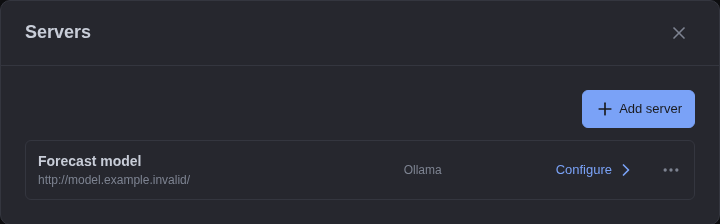
In Connect server, choose a preset, enter its URL and optional authentication,
and select Discover models. Open WebIDE supports Ollama and
OpenAI-compatible servers such as llama.cpp and LM Studio. The server must be
reachable from the runtime handling the request; localhost inside a container
refers to that container. For containerized deployments (Podman or Docker) connecting to
an inference server on the host machine, use http://host.containers.internal:<port>/v1
(Podman) or http://host.docker.internal:<port>/v1 (Docker).
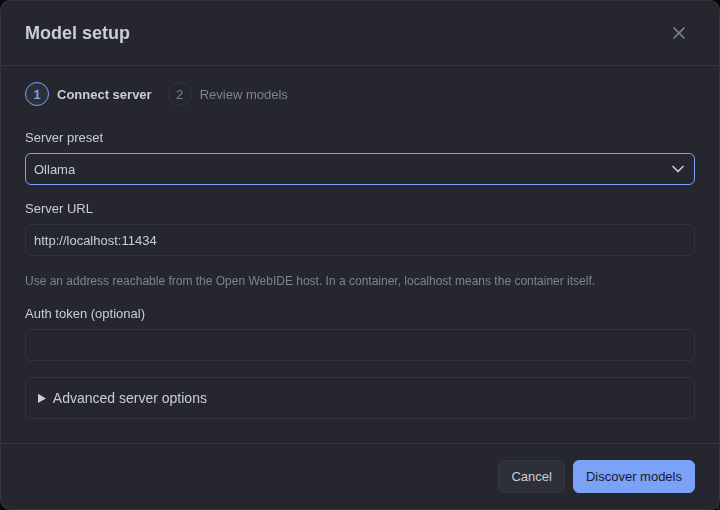
In Review models, expand a model to check or change its detected settings, including context capacity and output limits. Select Save server to finish. Choose Open model defaults from the confirmation to set your primary model.
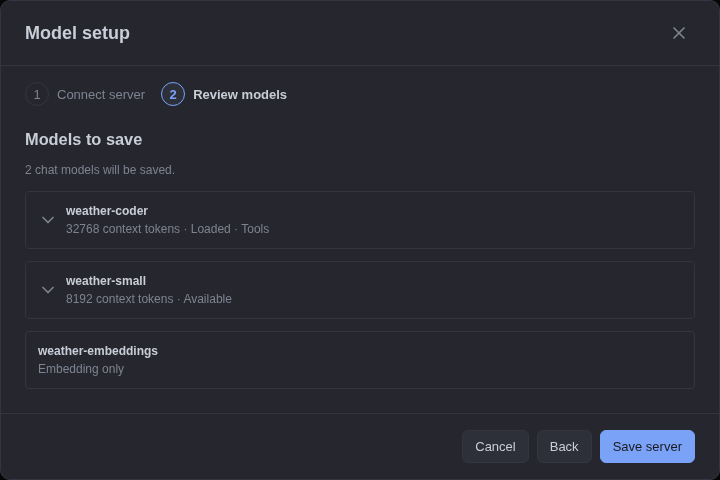
You can also choose an assistance model for naming, summaries, suggestions and automatic approval decisions. Server/model configuration is shared; your default model selections and system prompts belong to your account. Manage prompts from the user dropdown → System prompts.
For small-context models, choose a smaller tool set or Chat only under
Advanced server options → Available tools. The tool budget guide
explains the schema-cost estimates.
Use /model in Chat to change the model for your conversation. Type / for
command suggestions; see chat commands and goals for
activity summaries, manual compaction and saved objectives.
The saved auto-compaction threshold defaults to 85% of the context window; 0 disables it. Compaction summarizes older history before model requests while keeping the original messages in the database. See context compaction for implementation details.
Open a project and ask a question
Choose Open remote for folders on the app host or Open local for folders on this device. See workspace capabilities before using a local folder for commands or Git.
Start with a question such as “Explain how this project is organized.” Confirm that the agent can read the expected files before asking it to change them. Keep unrelated work in separate sessions so each conversation has focused context.
Review changes
Approval modes determine when the agent asks before acting. Start with Manual;
Shift+Tab cycles the available modes. New sessions start in Auto, so switch
to Manual if you want explicit approval for tools that require it.
| Mode | Behavior |
|---|---|
| Manual | Ask before tools that require approval. |
| Auto-accept edits | Approve file writes automatically; ask before other tools that require approval. |
| Auto | Use the fast or primary model to approve routine actions; ask about risky or uncertain actions. |
| YOLO | Approve all tools automatically, including shell commands. |
Open a file with a pending edit to review its diff in the Editor. Choose Accept to keep the change or Reject to restore the previous contents. Inspect file diffs before committing.
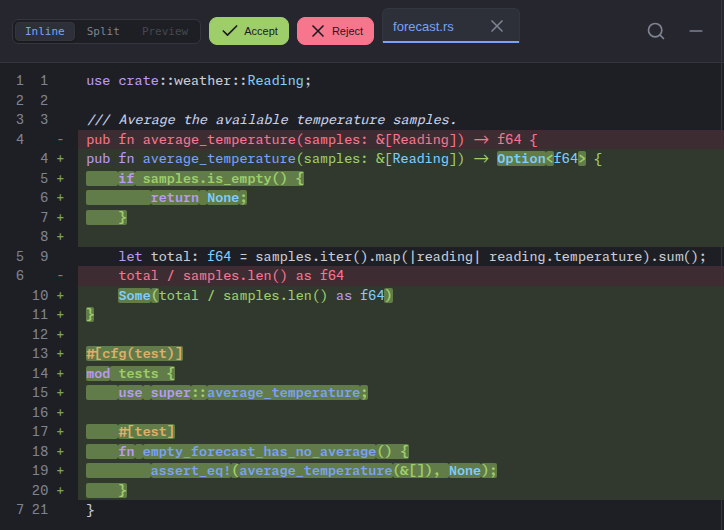
Command and Git tools run with the execution bridge's host permissions. Chat history and tool results help you see what happened; keep file backups until you no longer need to reject or restore changes.
If the page reloads or disconnects, follow reload and reconnect.