 Open WebIDE
Chat commands and goals
These controls work the same in local and remote projects, and in projectless chats. Host command and Git capabilities still depend on the execution bridge.
Discover commands
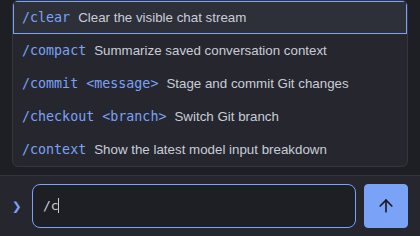
Type / in the composer to see commands with argument hints. Up and Down select
an entry; Tab or Enter completes a partial command name. Enter sends an exact
command. Clicking an entry also completes it. Escape dismisses the suggestions
without changing the draft. Image attachments keep the prompt on the normal send
path rather than executing a slash command.
Attachments appear as a compact paperclip and count beside the send controls. Expand it to preview or remove images and detach editor context. File mentions remain inline in your prompt. Chat actions return focus to the composer so you can type a follow-up.
Use /help for commands and shortcuts, or /help goal to search the command list.
/model lists models; /tokens and /context show context accounting.
Inspect context and generation
Open a prompt's … menu → Run context to inspect the saved instructions and environment for that prompt. These snapshots stay out of the transcript; compaction summaries remain expandable in the history.
Click the tokens/sec readout in the statusline to open Generation statistics. It shows the latest call's input/output counts and generation time, session token usage, and speed bars for up to eight recorded model calls. Hover a bar for its output count and duration. ~ marks estimates; unknown durations stay unknown. Generation timing excludes tool execution and approval waits. Session totals include delegated tasks; intermediate calls may be absent after reloading.
Context and Generation statistics link to each other, so statistics are also available through the context dialog on narrow screens. Dialogs close when you switch chats, projects or accounts. Closing one returns focus to the composer.
Follow activity
While a model is preparing its response, Chat shows a spinner with an activity verb. The Thinking disclosure appears when reasoning text arrives, and Chat shows tool activity and approval prompts as the run progresses.
Consecutive tool calls and finished reasoning-only messages share an expandable activity summary. The step count includes those reasoning messages; the duration sums recorded tool execution time, excluding approval waits. Expand the group to inspect individual reasoning and tool results. Approvals and failures force the group open, so neither is hidden behind a collapsed summary. Running tools and their activity summary use the same animated spinner as thinking blocks; approval waits, completed tools and cancelled runs stop the animation. Replies remain visible.
Keep tools within the context budget
Edit a server through Servers. On the server-connection step, Available tools offers All tools (the default), Selected tools, and Chat only. The choice applies to every model on that server and is stored in the database. Changes take effect after Save when starting a new run.
The selector estimates the total schema tokens and each tool's cost, including its parameters. Model settings show the estimated share of that model's configured context. These are conservative estimates, not exact tokenizer counts. Host and model capabilities can reduce the actual set; the Context view shows the latest request breakdown after sending. No tools are silently removed to meet a percentage.
On a small-context model, keep the tools your task needs. task enables child-agent
delegation and has its own schema cost. An empty selection or Chat only sends no
tools and uses ordinary chat. Tool selection works in local, remote and projectless
sessions. Children inherit the parent's available tools; an assistance model's server
selection can narrow them further. Existing approval rules apply, and a model call
to an unadvertised tool is rejected before execution. These controls govern model
tool calls; manual commands and terminal use keep their existing behavior.
Compact saved context
When the run is idle, send /compact to summarize its saved conversation with
the existing compaction engine. The summary becomes the context for later turns;
original messages remain in the database and visible history. Explicit compaction
works even when automatic compaction is disabled. It uses the configured fast
model when suitable, with primary-model fallback and the same budget checks.
The model needs a configured or detected context limit. A failed summary leaves original history intact. Stop cancels the operation. If another window sends a message during summarization, the stale summary is rejected; retry when idle.
Work toward a goal
Send /goal <objective> to save an objective in this session and queue work on
the execution host. A session is created if needed. Use /goal start <objective>
when the text would otherwise be interpreted as a control command.
The chat statusline shows Goal active, Goal paused, or Goal complete.
Click it to open the goal context panel with the objective, current status and
controls. Completed goals include elapsed time, such as Goal complete (1h23m),
measured from starting the goal through completion, including pauses. Older saved
goals show completion without a duration because their start time was not recorded.
The usual tools, permissions and Stop control apply. Goals run on the host even
when the browser is closed or another session is open. Remote and projectless
chats use the server host; local folders use their verified paired host. Local
activation requires that folder connection. The host and backend must remain running.
After each turn a separate bounded model evaluation checks the objective against saved response and tool evidence. An unmet goal queues another turn; verified completion marks it complete. Blockers, run errors, unavailable evaluation, three consecutive turns without tools, or 100 turns pause the goal for review. Resume starts a fresh turn allowance. Pending tool approvals remain pending until you return and decide; closing the browser never approves them.
| Command | Action |
|---|---|
/goal or /goal status |
Show the saved objective and state. |
/goal pause |
Save the paused state and stop this goal's current run. |
/goal resume |
Continue from saved history with the same objective. |
/goal complete |
Confirm completion after reviewing the result. |
The panel offers Continue, Pause and Mark complete buttons. Continue preserves an unsent draft. Complete the current goal before starting another one. Goals survive reloads and device changes through session-scoped database storage. Returning to an active host goal attaches to its current run. Host recovery continues from saved history with a new turn rather than replaying a consumed prompt. Existing goals created before host continuation require an explicit Continue to opt in. A forked conversation starts without the source session's goal. Concurrent changes from another window require a refresh before updating.
Project-wide knowledge and the Sessions memory toggle are described in Project memory.
Agent questions
Agents can pause for structured choices or free-text replies using ask_user_question.
See agent questions for answering, cancellation and reconnects.