 Open WebIDE
Host administration
Use project-less chat to inspect and manage your homelab machine over SSH. The SSH client and host administration are included in the standard image and native bridge. There is no extra feature flag or host-specific Open WebIDE executable. Until you configure a connection, host tools are unavailable.
Connect the machine
- Enable SSH on the target machine and authorize an SSH key for the account you
want to use (
~/.ssh/authorized_keys). Host administration connects with-oBatchMode=yesand requires key authentication; password login is not supported. Allow the bridge to reach its SSH port (normally 22); internet exposure is unnecessary. The target can be Linux, macOS or Windows with an SSH server. - Make that key available to the server bridge. Native bridges inherit the
current SSH agent and configuration. Containers use the
SSH agent forwarding overlay or the agent mounts
in the Quadlet template. Keys remain in the agent;
the app does not upload or store private keys. On SELinux hosts running Podman Quadlet,
add
SecurityLabelDisable=trueso the rootless container can access the host user's agent socket. - In Settings → Host → Host administration, enter the SSH username for your host account. The OS
is detected over SSH. The host address is automatic: the supplied Compose files
use Docker's host gateway, Quadlet uses
host.containers.internal, and a native bridge uses127.0.0.1. SSH defaults to port 22. Advanced connection settings provides an address and port override for another machine, SSH aliases or unusual networking, an OS override and optional pinned public host keys. Existing saved destinations remain unchanged. An alias must exist in the bridge's public SSH configuration. - Select Save and test connection. SSH uses the bridge's existing verified
or mounted
known_hostsfile. For a new host, collect public entries (e.g.ssh-keyscan -p 22 host.containers.internal), verify them through another trusted channel, then add them under advanced settings. Strict host-key checking stays enabled; discovery does not automatically trust a new host key.
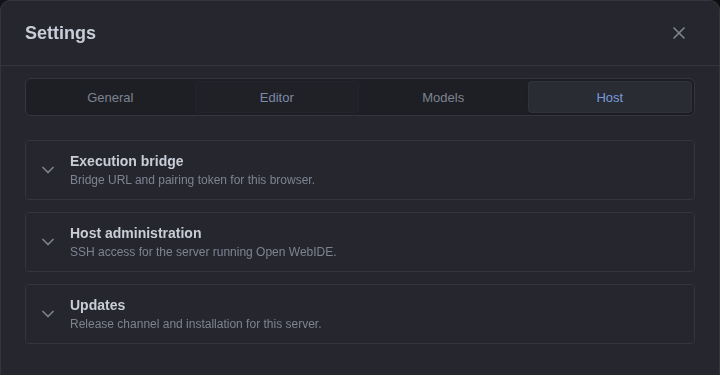
Disabling host administration saves immediately. Other connection changes use Save and test connection and show their saved or connection error status.
For a custom Linux docker run deployment, add
--add-host=host.docker.internal:host-gateway so the image can reach its host.
OPENWEBIDE_HOST_SSH_HOST overrides the bridge's automatic address if needed.
Docker Desktop and Podman machine deployments may route the hostname through
their container VM; use the address override if the SSH server is elsewhere.
This is shared, administrator-owned server configuration, stored in SQLite. Changes invalidate prepared operations; connection settings cannot change during active maintenance. Docker and Quadlet examples include the capability by default, but need the SSH credentials and connection above before use.
Inspect and manage
Open a project-less session and select Host in the chat statusline to open a viewport-bounded flyout, aligned with Goal and Monitor on the right of the chat statusline. The entry uses a text label. Before configuration, the flyout links directly to Settings → Host → Host administration. Configured inventory and operations refresh while the flyout is open, retaining the last results and a stable scrollable size. The inline refresh icon allows manual retries; closing the flyout stops polling. Use it to view the machine identity, OS/version, CPU and RAM, services, processes, containers, ports, storage and configuration. Filter resources and select Ask about this to add the observed resource to your chat draft and close the flyout. Clicking a resource expands its observed details and named relationships; it does not execute host commands. Connection details and collector notes expand separately, while inventory uses one main scroll area. Missing utilities appear as inventory notes; inspection still returns the collectors that succeeded. Container inspection uses Podman when installed, otherwise Docker, and includes published ports and mount sources. On macOS and Windows, the runtime can use a separate VM; runtime-reported paths are labeled accordingly. See the Podman inspection reference and Docker inspection reference.
The agent receives the observed host and shell context when its run starts. Unix commands use POSIX shell syntax; invoke Bash explicitly for Bash scripts. Windows commands use PowerShell. The selected host is independent of your browser computer, model server and project execution environment.
Try requests such as:
- “Set up a user Podman Quadlet for Plex, using /srv/media, and verify it starts.”
- “Why is this service failing? Inspect its configuration and recent logs.”
- “Prepare an OS update and include post-update checks.”
The agent inspects first, prepares an immutable plan containing exact commands, working directories, timeouts, elevation and verification steps, then requests explicit approval. Host changes always require approval, including in YOLO mode. Preparation does not execute the plan. A running operation means it has started; review the operation's retained results to see whether commands and checks passed.
Interactive prompts and elevation
Interactive commands get an SSH terminal. Expand their host operation to see
live output and enter a Private terminal reply for sudo passwords or other
prompts. The browser encrypts each reply to an ephemeral bridge key using HPKE
(RFC 9180: X25519/HKDF-SHA256/AES-256-GCM). The backend forwards ciphertext; only
the bridge decrypts it before terminal input. Keys live in bridge memory for one
live prompt. Replies are bound to the account, session, operation, prompt and key,
with bounded single-use request IDs; modified, replayed and retired-prompt replies
are rejected. There is no plaintext fallback. New prompts advertise a
private_reply_token rather than the old plaintext-input token, so older clients
do not show their reply form for new prompts. Upgrade the server and bridge
together and reload older clients; legacy stored operations remain readable.
Public keys are delivered through the existing authenticated server/bridge
connection. Use HTTPS to trust the delivered app code and keys. This protects
reply bodies from ordinary backend handling and intermediate transport/logging;
it does not protect against a malicious app server substituting keys or browser
code, or against a compromised bridge/target. The bridge necessarily handles
plaintext and temporarily retains replies in memory to redact echoed secrets.
Replies never enter model context, chat history or database records. Ordinary
terminal output remains inspectable; exact echoed replies are redacted. You can
send an interrupt from the same operation. Noninteractive commands use sudo -n
when elevation is requested, and fail if authentication needs a prompt.
Linux and macOS can elevate individual approved commands with sudo. The IDE bridge keeps its normal privileges. Windows uses the SSH account's existing privileges; interactive desktop UAC elevation is not supported over this path.
Disconnects and reboot
Operations run independently of the requesting chat. Closing a tab or stopping chat leaves maintenance running; reconnect to inspect the same operation and reply to an active prompt. Commands, results and status live in the database; private prompt replies do not. Only one operation may maintain a target at once.
A reboot plan must include verification commands and identify its final step as an intentional reboot. After the host returns with a new boot identity, the resident bridge runs verification without replaying mutation commands. The bridge also retries recovery after SSH/backend outages. If the bridge itself restarts during ordinary maintenance, the operation becomes interrupted and needs inspection; it never automatically repeats its changes. An expected reboot that is not observed within an hour becomes interrupted.
Keep the container or native bridge configured to restart at boot. The supplied Compose restart policy and Quadlet user service already provide their normal restart behavior. Linux user services may need lingering to start before login. Project sessions and paired browser companion bridges cannot acquire these host administration tools. Only the authenticated server bridge uses this connection.
Updates
Settings → Host → Updates manages the Open WebIDE deployment on the server's physical host. It uses the same saved SSH connection regardless of which local or remote project is open; it does not update paired companion bridges. Configure SSH opens the host connection form from the update settings when the installation is unidentified.
Choose Nightly (the rolling nightly image), Preview, or Stable, then save
the update settings. Checking reads registry metadata without downloading image
layers. The host needs Python 3, skopeo, a running user systemd manager and access
to its container runtime. Registry authentication stays on the host; use
skopeo login ghcr.io if anonymous inspection is unavailable. Enable user lingering
for a service that must continue after SSH disconnects, as described in the
Quadlet guide.
The bundled bridge detects its running container and proposes the Compose or Quadlet settings automatically. Review and save them before installing a release. Detect installation retries; Advanced deployment settings provides manual overrides when metadata is unavailable or ambiguous, or the bridge runs outside the app container. Discovery reads public metadata without editing host files.
For Docker Compose overrides, enter the absolute installation directory, all Compose
files in their normal order (including SSH/HTTPS overlays), and the app service
name, normally openwebide. The updater retains existing .env entries and pins
OPENWEBIDE_IMAGE to the approved digest. Compose files must use that image
variable, as the downloadable installation files do. The host account needs Docker
access and Compose v2 with up --wait support.
For Podman / systemd, enter the absolute path to the user-owned
openwebide.image Quadlet and its container service, normally openwebide.service.
The updater pulls the approved image, changes the image reference, reloads the
user manager and restarts that service. Both deployment methods retain volumes and
project mounts. The pinned digest remains in deployment configuration; registry
auto-update timers do not advance an image while it is pinned.
Install release explicitly approves a restart. Active agent runs and terminals
are interrupted. The host runs a detached user systemd job, so the update can
finish after the app container stops. Its receipt and deployment-file backups are
kept under $XDG_STATE_HOME/openwebide/updates/<id> (normally
~/.local/state/openwebide/updates/<id>), readable only by the host account.
The app records the update claim in SQLite before launching it, polls its status,
and confirms success only when the selected build answers again. Reload the app
after success to load the matching frontend. Reopening Updates resumes status
checks. Disconnecting never automatically replays an update.
Images include their commit, version and supported database schema. Updates that
cannot read the current schema are rejected, including incompatible channel
downgrades. Images published before this metadata was added cannot be installed
through this UI. Back up the data directory before upgrading; a failed deployment
does not trigger an automatic rollback across possible database migrations. Inspect
the retained receipt, deployment backups and journalctl --user -u
openwebide-update before retrying or manually restoring configuration.